Why Does My Suno Song Sound Worse After Export?
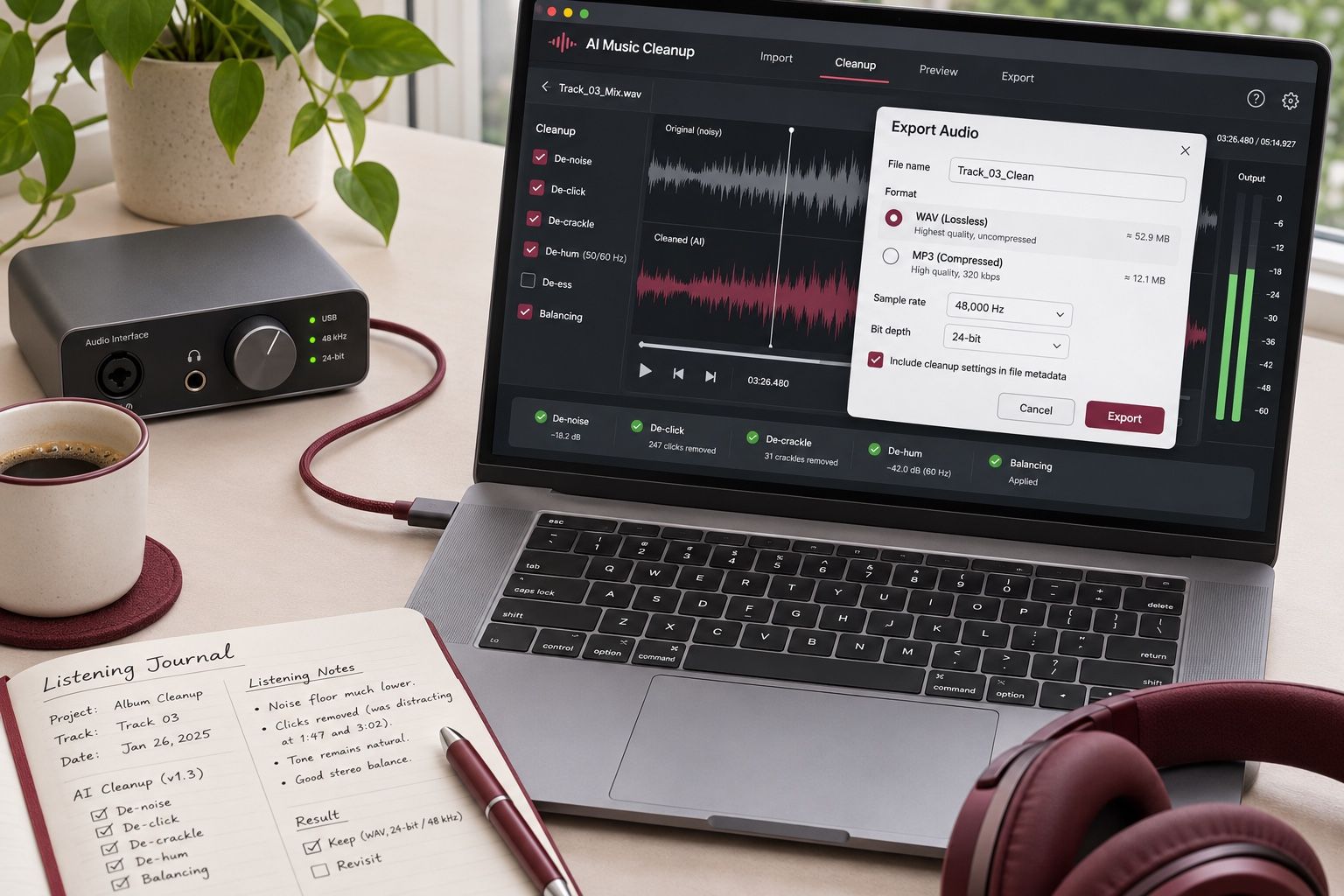
First compare the same passage on the same device at a similar listening level. Then check that you downloaded the same version, the intended export scope and the available file format. The comparison tells you whether to investigate the file, your playback setup or a sound already present in the song.
Keep the comparison tied to one file version
Begin with an untouched download and a note of the song version it belongs to. Record whether it is the original generation, a remaster or an edited Studio arrangement. Two tracks with the same title can still have different musical content.
Pick a short chorus phrase and include a quieter moment after it. Use that passage in the browser and in the local file. A quieter tail can expose an unwanted sound that a loud section covers, so comparing only the loudest beat may miss the difference you noticed.
Keep the first download as your reference. Put conversions and processed versions in a separate folder with names that identify the step. This lets you ask a narrow question later, such as whether a difference appeared on download, import, processing or export.
Use one playback path and match the level
Keep the same output device while switching between the browser and local player. Check that both applications are routed to the headphones you are using. Avoid comparing a phone speaker with a computer interface while deciding whether a file changed.
Set a comfortable level, then adjust each application so the same phrase has similar apparent loudness. You do not need to force a loudness target for this check. The aim is to hear a tonal or timing difference without one version winning mainly through level.
Check player equalizers, spatial effects and loudness settings. Disable one optional setting at a time and repeat the phrase. If an unchanged file sounds different in two players, that gives you a useful playback clue. Save that observation before processing the audio to compensate.
Full Song, Selected Time Range, or Multitrack?
Studio’s Full Song option exports the full project mix with its tracks and processing. Selected Time Range exports the selected span. Multitrack exports tracks in the context of the Studio mix. An individual clip can also be downloaded. These scopes answer different production needs. Studio export guide.
For a check against the whole arrangement, confirm that your export contains the same audible parts and processing you were monitoring. A soloed clip or a limited selection may be entirely valid for another task and still be an unsuitable reference for that comparison.
If the song seems too fast, too slow or in a different key, inspect the clip settings before trying an EQ change. Suno’s documentation identifies tempo, transpose and speed as settings that affect the exported audio. Check them on the actual clip that contributed to the export.
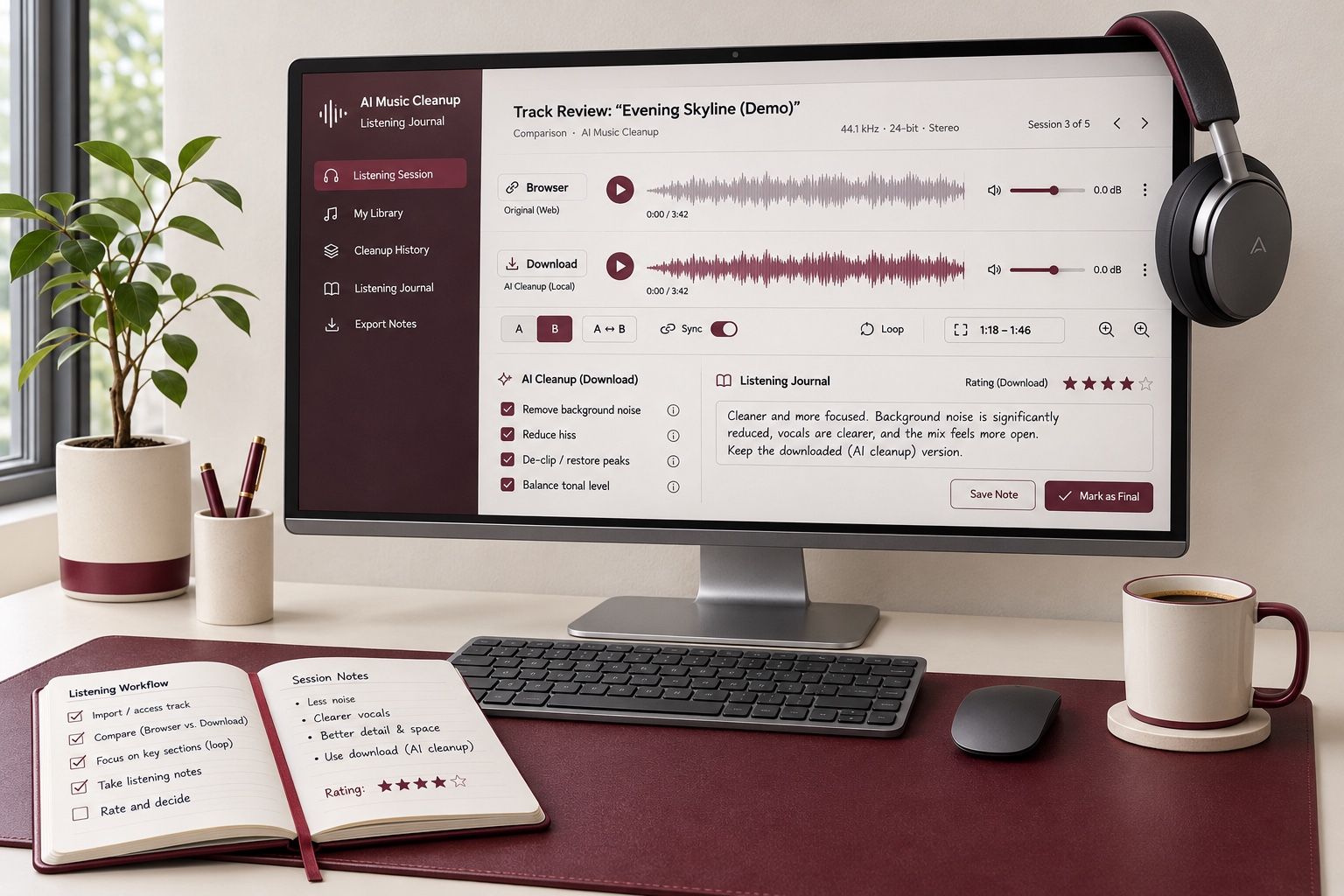
MP3 and WAV answer a format question
Suno’s download guide lists MP3 across its web and mobile paths and WAV for Pro and Premier users on the website. The guide also says mobile downloads default to MP3. Studio’s export guide describes audio export as WAV. Confirm the file you received through the route you used. Download formats.
MP3 is a lossy format. Its encoding removes some information to reduce the file size. A WAV made by decoding that MP3 contains the decoded result. It cannot recreate the information the MP3 encoder discarded. Keep a directly available WAV if you plan further processing, and preserve the original download.
When both original download options are available, compare those files directly. Avoid comparing a WAV with an MP3 you converted several times through different apps. Keep the musical version, time range and playback path consistent so format is the variable you are actually examining.
Check import, processing, and output separately
Open the untouched download in your editor with the effects bypassed. Confirm the start position, track gain and master output. Play the same phrase before enabling the processing chain. If the sound is already different, inspect the session and playback settings before adjusting plugins.
Enable one processing stage at a time. After each stage, return to the same consonant, drum attack or cymbal tail. Keep the level comparable. If an effect creates the change, compare it bypassed and enabled before deciding whether it belongs in the chain.
When several tracks play together, watch the combined output as well as the individual tracks. A safe-looking track meter alone does not establish that a later sum has enough room. If reducing a level makes the objectionable distortion disappear at a later stage, preserve that observation and revisit the gain structure.
| Where the change appears | Control test | Next action |
|---|---|---|
| Only in one player | Play the unchanged download elsewhere on the same output | Inspect the first player’s enhancements and routing |
| In the original and download | Replay the same timestamp at similar levels | Diagnose the existing sound in the song |
| Only after import | Bypass effects and check session playback | Inspect track gain, alignment and output settings |
| Only after one effect | Compare that stage enabled and bypassed | Reduce or remove the stage that caused the unwanted change |
| Only in your exported file | Reimport a short test without processing it again | Check export scope, range and output settings |
| Only in the extracted parts | Compare the full mix with a solo stem and recombined parts | Use the stem-quality workflow |
Reimport a short exported test
Export a short region using the settings you intend for the final file. Include the onset of a clear note, the loudest part of the passage and its tail. Write down the selected range and the output filename before you leave the dialog.
Bring that test back into the session without applying the processing chain to it again. Align it with the intended passage and switch between the two listening states. Mute the source when playing the reimported test so they do not sum together.
Listen across the start and end of the selection. Check whether a breath, pickup note or reverb tail was cut by the range. If the test passes, use the same output settings for the full export and then listen to the resulting file itself. An export-complete message tells you the operation finished, while playback tells you whether you exported the intended result.
Use the Sunofix level-matching check
The Sunofix audio-quality guide places level-matched comparison before the final mastering decision. Use the same section and the same listening device. A loudness reading can help you adjust playback gain, but it does not grade the musical result.
If you use a LUFS meter, measure the same time range in both files. Treat the reading as an aid to setting up the comparison. Then listen for the specific change you were investigating: the consonant, the cymbal tail, the bass note or the transition.
Take a break after repeated loops and return to a longer section. A change that seems helpful for two seconds may become tiring over a verse. Keep the copy that solves the named problem while preserving the song’s movement and expression.
If the original and cleaned copies both have the same arrangement problem, record that result. A file-format conversion cannot rebalance a buried singer. Choose a mix adjustment or a creative revision according to what is actually wrong, then use the same export comparison again.
Choose the next action from the result
A repeatable difference is useful even before you fix it. If one player is responsible, adjust that playback path. If the wrong version or scope was exported, make the intended download. If a defect remains across the available versions, keep the original and try a local repair on a copy.
Stop changing file settings once the comparison no longer points to them. A softer chorus, metallic cymbal or buried word needs its own listening decision. Write down the timestamp and move to the relevant guide so you can judge one change at a time.
Questions at the listening desk
Does a WAV download guarantee clean sound?
WAV is a file format. Listen to the actual recording for unwanted sounds. Choosing WAV does not itself repair a tail or distortion already present in the source.
Should I master the download immediately?
First identify the difference you heard. Extra processing makes the comparison harder to interpret if the issue came from a player setting, a different version or an unintended export range.